
Setting Up a New Smartphone Without Losing Anything from the Old One
A step-by-step walkthrough for safely backing up and migrating contacts, photos, and apps to a new phone.
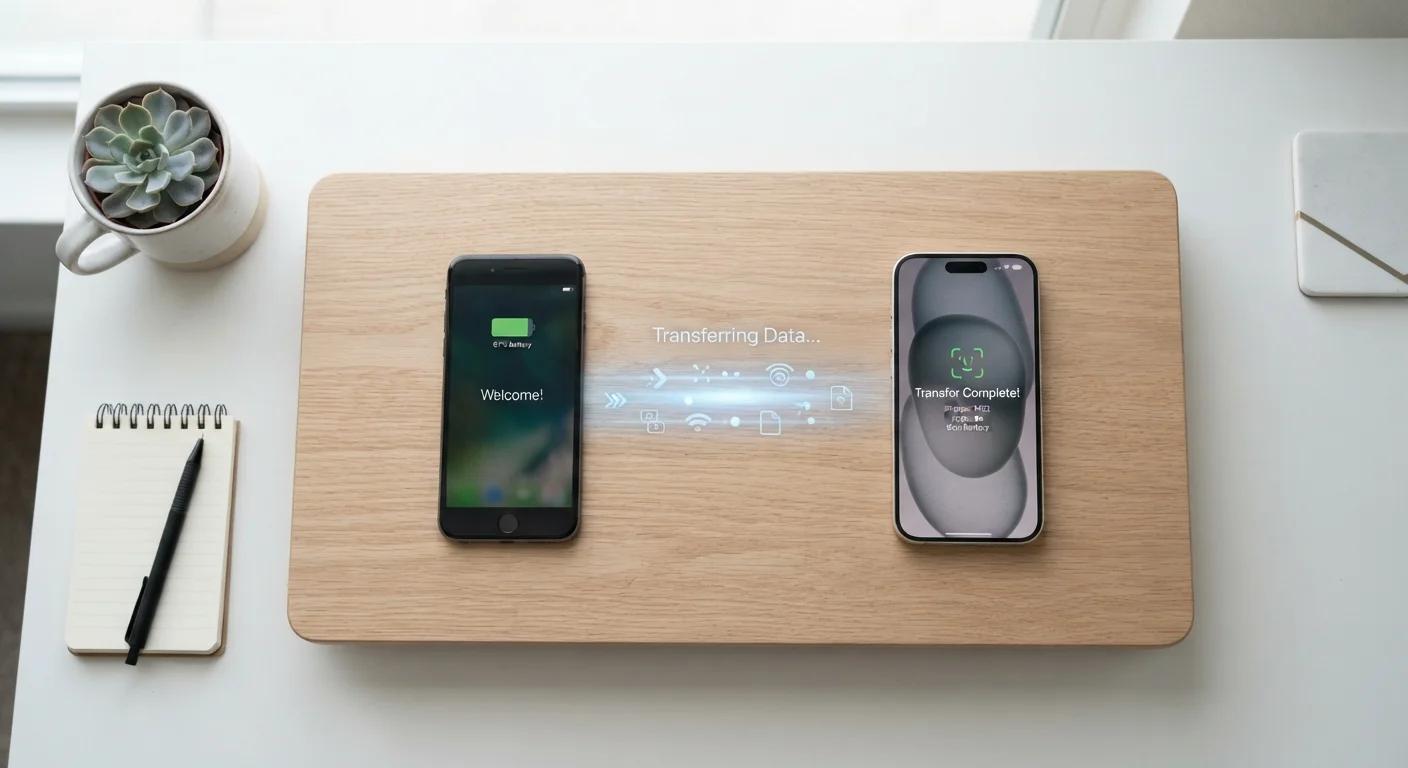
Photo: HorizonMetric.com | One Destination For Everyday Insights editorial
—— In This Article
Key Takeaways
- Back up your old phone before you do anything else — this is the most critical step.
- Both Android and iPhone have built-in transfer tools that handle most of the work automatically.
- Photos, contacts, and app data each need separate attention to ensure nothing slips through.
- A Wi-Fi connection and a charged battery are essential throughout the migration process.
- Double-check that everything arrived safely on the new phone before wiping the old one.
Why a Careful Transfer Matters
Getting a new smartphone is exciting — until you realize your contacts, photos, or authenticator app codes didn't come with it. A rushed setup can mean lost memories, missing work files, or getting locked out of accounts that rely on two-factor authentication codes stored on your old device.
The good news is that both Android and iPhone (iOS) have built-in migration tools that make the process straightforward, even if you've never done it before. The key is working through each step in the right order rather than skipping straight to powering on the new phone. If you've ever wondered why your phone fills up so quickly before a move like this, our piece on why phone storage fills up faster than expected is worth a quick read first — it can help you decide what's actually worth keeping.
What you will need
Step-by-Step: Backing Up and Moving Your Data
Follow these steps in order. Rushing or skipping steps is the most common reason people lose data during a phone switch.
Check your cloud storage space
Before backing up, confirm you have enough free space in your cloud account. On iPhone, go to Settings → [your name] → iCloud → Manage Storage. On Android, open Settings → Google → Backup to see your storage usage. If you're nearly full, you may need to clear out old backups or upgrade your storage plan temporarily.
Back up your old phone to the cloud
On iPhone: Go to Settings → [your name] → iCloud → iCloud Backup and tap Back Up Now. Keep the screen on and stay connected to Wi-Fi until it completes.
On Android: Go to Settings → Google → Backup and tap Back Up Now. The process backs up contacts, app data, call history, and device settings.
Note that your photos may be backed up separately via Google Photos or iCloud Photos — confirm this is turned on and fully synced before proceeding.
Use the built-in transfer tool during new phone setup
When you power on your new phone for the first time, both platforms offer a direct transfer option before you even log in.
iPhone to iPhone: Place the old phone next to the new one during setup. An animation will appear on the old phone — hold the new phone over it to begin Quick Start, Apple's peer-to-peer transfer tool. You can restore from an iCloud backup or transfer directly over a cable or Wi-Fi.
Android to Android: During setup you'll be prompted to copy data from your old device. Use the provided cable and adapter, or select the Wi-Fi transfer option. Google's setup wizard handles contacts, apps, and most settings automatically.
Switching from iPhone to Android or vice versa: Use Google's Switch to Android app (on iPhone) or Apple's Move to iOS app (on Android) to migrate your core data between platforms.
Manually transfer anything the tool might miss
Automated tools are thorough, but some things require a manual check:
- Text messages: These don't always migrate, especially cross-platform. If you need to save specific conversations, screenshot them or use a dedicated SMS backup app before switching.
- Photos not yet synced to the cloud: Connect your old phone to a computer and copy the camera folder as a manual backup.
- Authenticator app codes: Check whether your authenticator app has its own built-in export or backup feature, and use it before the old phone is reset.
- Downloaded music or podcasts: Files stored locally (not streamed) may need to be re-downloaded on the new device.
Verify, then factory reset the old phone
Spend at least 10–15 minutes using the new phone normally — make a call, open your bank app, scroll through photos — before you do anything permanent. Once you're confident everything is in order, you can safely perform a factory reset on the old device. This erases your personal data and prepares it for trade-in, resale, or recycling.
On iPhone: Go to Settings → General → Transfer or Reset iPhone → Erase All Content and Settings.
On Android: Go to Settings → General Management → Reset → Factory Data Reset. The exact path varies slightly by manufacturer.
Keep Both Phones on the Same Wi-Fi Network
Throughout the transfer process, keeping both devices connected to the same Wi-Fi network speeds up direct device-to-device transfers significantly. Some transfer tools require it. If your home network is slow, moving close to your router can make a real difference in transfer time.
After the Transfer: What to Check
Once your new phone has finished setting up, spend a few minutes verifying that everything made it across before you do anything else.
- Contacts: Open the contacts app and spot-check a handful of people you call regularly.
- Photos: Scroll back through your camera roll to confirm older photos are present, not just recent ones.
- Apps: Look for apps you use daily — banking, messaging, health tracking — and make sure they're installed and logged in.
- Two-factor authentication: If you use an authenticator app (such as one that generates six-digit codes for logging into accounts), this data often does not transfer automatically. Check the app's own backup and export settings before wiping the old phone.
- Saved passwords: Test that your password manager or browser-saved passwords are accessible.
Only after you've confirmed everything is working should you consider doing a factory reset on the old phone. Once you're settled in, keeping your new device running well for longer comes down to a handful of consistent habits worth building early.
Don't Trade In the Old Phone Too Fast
Retailer trade-in programs often encourage you to hand over the old device on the spot. Resist the urge to do this before you've thoroughly tested the new phone. Give yourself at least 24 hours of normal use to catch anything that didn't transfer correctly. If something is missing, having the old phone on hand is the easiest way to recover it.

Technology Editorial Team
Technology Editorial Team is the collective byline for our editorial team and contributor network. Articles published under this byline or an editorial pen name are researched, written, and reviewed according to our editorial standards for clarity, consistency, and independence before publication.
View author profile