
Getting Smart Home Devices from Different Brands to Work Together
Not every smart device talks to every other one. Learn how compatibility standards like Matter and Zigbee affect your setup choices.
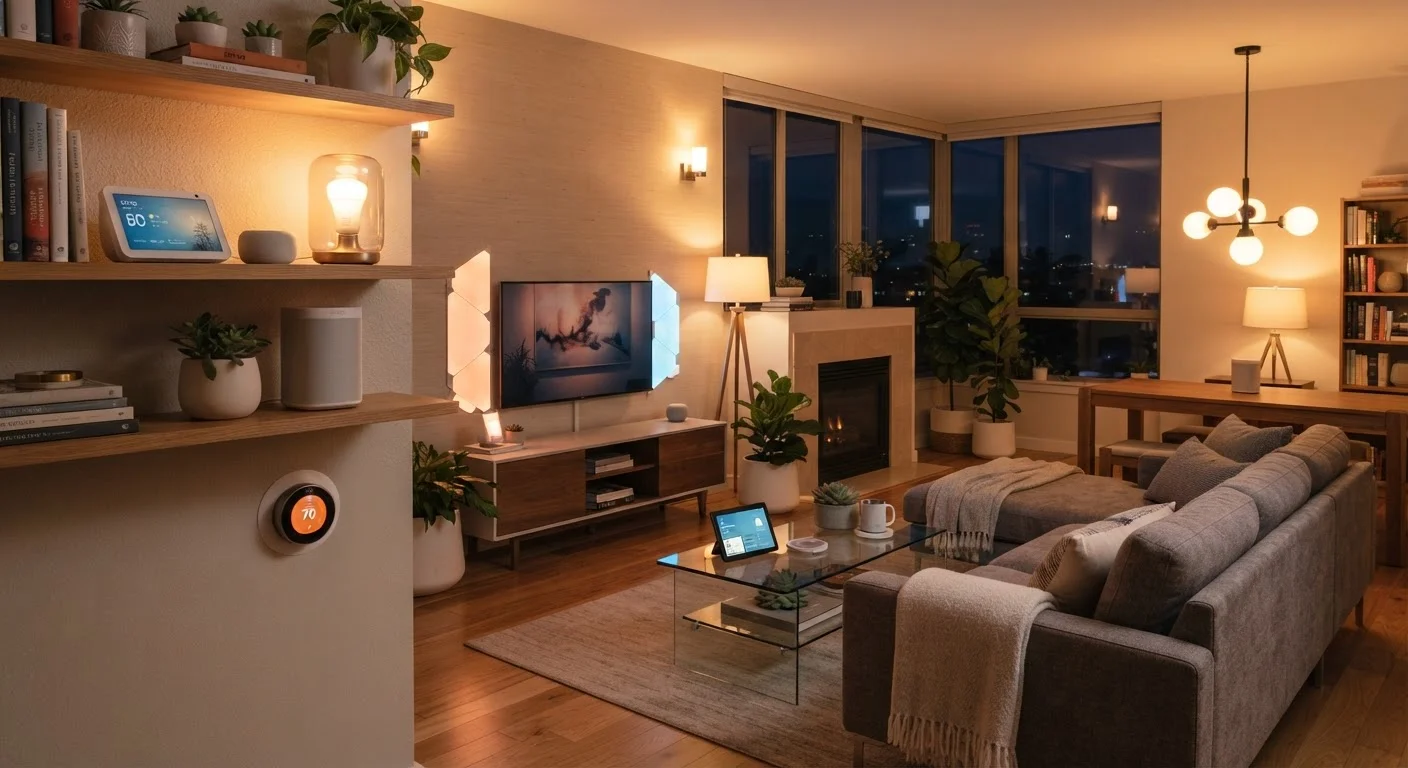
Photo: HorizonMetric.com | One Destination For Everyday Insights editorial
—— In This Article
Key Takeaways
- Not all smart home devices speak the same wireless language — compatibility depends on the protocol they use.
- Matter is a newer standard designed to let devices from different brands work together more easily.
- A smart home hub can bridge older devices that use different protocols like Zigbee or Z-Wave.
- Checking compatibility before you buy saves significant frustration later.
- You don't need to replace all your existing devices — a hub or bridge can often connect them.
Why Smart Devices Don't Always Talk to Each Other
The promise of a smart home sounds simple: plug things in, connect them, and control everything from one app. The reality is that the industry developed without a universal standard, so different manufacturers built devices that speak different wireless languages. A light bulb using Zigbee and a thermostat using Z-Wave have no native way to communicate directly — they need a translator in between.
This isn't a sign that something is broken. It's just how the technology evolved. The good news is that the industry has been moving toward a shared standard called Matter — a protocol backed by major technology companies that is designed specifically so devices from different brands can work together without needing separate hubs or workarounds. Matter-certified devices are increasingly common on store shelves.
Even so, plenty of people already own devices that predate Matter, and replacing everything at once isn't practical. Understanding what you have — and what bridges the gaps — is the most useful starting point. If you want honest context on what smart home tech actually delivers versus what it promises, our breakdown of common smart home myths is worth a read before you go further.
What you will need
What You'll Need Before You Start
Getting mixed-brand devices working together doesn't require a professional installer, but it does take some preparation. The tools below cover most setups — not every item is required for every situation.
Smartphone with Bluetooth and Wi-Fi
Required for installing apps, scanning QR codes during device setup, and controlling devices.
Smart Home Hub (e.g., a Matter-compatible controller or dedicated hub)
Bridges devices that use different protocols (Zigbee, Z-Wave, Thread) so they can communicate with one another.
Manufacturer Apps
Each brand's app is used to pair, configure, and update its devices before connecting to a shared platform.
Ethernet Cable
Gives your hub a more stable connection to your router than Wi-Fi, reducing dropped commands.
Start With One Room to Test
Before committing your whole home to a new hub or protocol, connect just two or three devices in one room and test them thoroughly for a week. This low-risk approach helps you catch issues — like delayed responses or dropped connections — before they affect your entire setup.
Step-by-Step: Connecting Devices Across Brands
Follow these steps in order. Skipping ahead — especially skipping firmware updates in Step 3 — is the most common reason setups fail partway through.
Identify the Protocols Your Devices Use
Every smart device communicates using a wireless protocol — think of it as the language the device speaks. The most common ones are:
- Wi-Fi: No hub needed; connects directly to your router. Works over long distances but can crowd your network.
- Bluetooth: Short range, no hub needed, but limited integration with other devices.
- Zigbee: Low power, reliable mesh network, but requires a compatible hub.
- Z-Wave: Similar to Zigbee; requires a hub and is limited to a set frequency to reduce interference.
- Thread / Matter: Newer, designed specifically for interoperability. Matter-certified devices are built to work across platforms.
Check your device's box, manual, or the manufacturer's website. Look for the protocol listed under specifications or connectivity.
Choose a Central Platform or Hub
A platform is the app and ecosystem that ties your devices together — examples include Amazon Alexa, Google Home, and Apple Home. A hub is a physical device that translates between protocols, such as a Zigbee hub.
If all your devices support Matter, you may not need a separate hub at all — a Matter-compatible controller built into a smart speaker or router may be enough. If you have older Zigbee or Z-Wave devices, you'll need a hub that supports those protocols and can also connect to your chosen platform.
Pick the platform that covers the most devices you already own, then identify whether a hub is needed to bridge the rest.
Set Up and Update Each Device Individually First
Before linking anything together, set up each device using its own manufacturer app and make sure its firmware (the software inside the device) is updated. Outdated firmware is a leading cause of devices refusing to pair or behaving erratically.
- Download the manufacturer's app for the device.
- Follow the in-app pairing instructions, usually involving scanning a QR code or pressing a button on the device.
- Navigate to the settings section and install any available firmware updates.
- Confirm the device works correctly within its own app before proceeding.
Add Each Device to Your Chosen Platform
Open your central platform's app (such as Google Home or Amazon Alexa) and use its 'Add Device' or 'Set Up Device' option. Most platforms will guide you through a search for compatible devices or ask you to link the manufacturer's account.
For Matter devices, look for a QR code on the device or in its app — scanning this is often all that's needed to add it to any Matter-compatible platform.
For Zigbee or Z-Wave devices, they must first be paired to a compatible hub, and then that hub is linked to your central platform as a single integration.
Create Rooms, Groups, and Routines
Once your devices appear in your platform, organize them by room. This step makes it much easier to control everything without remembering individual device names.
After organizing by room, create routines — automated sequences where one action triggers another (for example, arriving home turns on lights and adjusts the thermostat). Most platforms have a Routines, Automations, or Scenes section for this.
Test each routine manually before relying on it. Check that devices from different brands respond correctly when triggered together.
Troubleshoot Devices That Won't Cooperate
If a device won't connect or drops off regularly, work through these checks in order:
- Distance: Move the device closer to the hub or router and try again.
- Firmware: Recheck for updates — sometimes an update released after initial setup resolves connection bugs.
- Protocol mismatch: Confirm the device actually supports the protocol your hub uses. Some devices advertise broad compatibility but have limitations in practice.
- Factory reset: As a last resort, reset the device and re-pair it from scratch.
For ongoing maintenance tips that keep all your devices running reliably, see our guide to keeping your devices running well for longer.
Check Compatibility Before You Buy
Device packaging and marketing language can be misleading. 'Works with Alexa' or 'Works with Google Home' does not guarantee that two devices will work directly with each other or with a third platform you already own. Always verify specific compatibility using the manufacturer's support page before purchasing any new device for your existing setup.
When Things Don't Go as Planned
Mixed-brand setups occasionally run into friction even after a careful setup. A few patterns come up repeatedly:
- Delayed responses: If a device takes several seconds to respond to a command, the issue is usually network congestion or a weak signal between the device and hub. A wired hub connection and a mesh Wi-Fi network (a system of multiple router nodes spread through your home) typically resolve this.
- Devices dropping offline: This often happens after a power outage or router restart. Most hubs reconnect automatically, but some devices need to be manually re-added. Check your hub's app for 'offline' alerts.
- Platform updates breaking routines: Occasionally a software update to a platform or device changes how integrations work. If routines stop working after an update, check the platform's community forums or support pages for known issues.
Resetting Devices Can Cause Data Loss
Factory resetting a smart device — often required when switching it to a new hub or platform — erases all its saved settings, schedules, and routines. Write down your current configurations before you start so you can rebuild them. Some platforms allow you to export settings; check before you reset.
A well-organized smart home also benefits from a well-organized physical space. If you're thinking about how your devices fit into your home's layout, our home organization hub offers practical strategies for simplifying your living environment. And if you've recently added or are considering a smart thermostat, see our honest look at what actually changes after you install one.

Technology Editorial Team
Technology Editorial Team is the collective byline for our editorial team and contributor network. Articles published under this byline or an editorial pen name are researched, written, and reviewed according to our editorial standards for clarity, consistency, and independence before publication.
View author profile