
What Those Router Lights Are Actually Telling You
A quick-reference guide to the status lights on common home routers and what each color or pattern typically means.
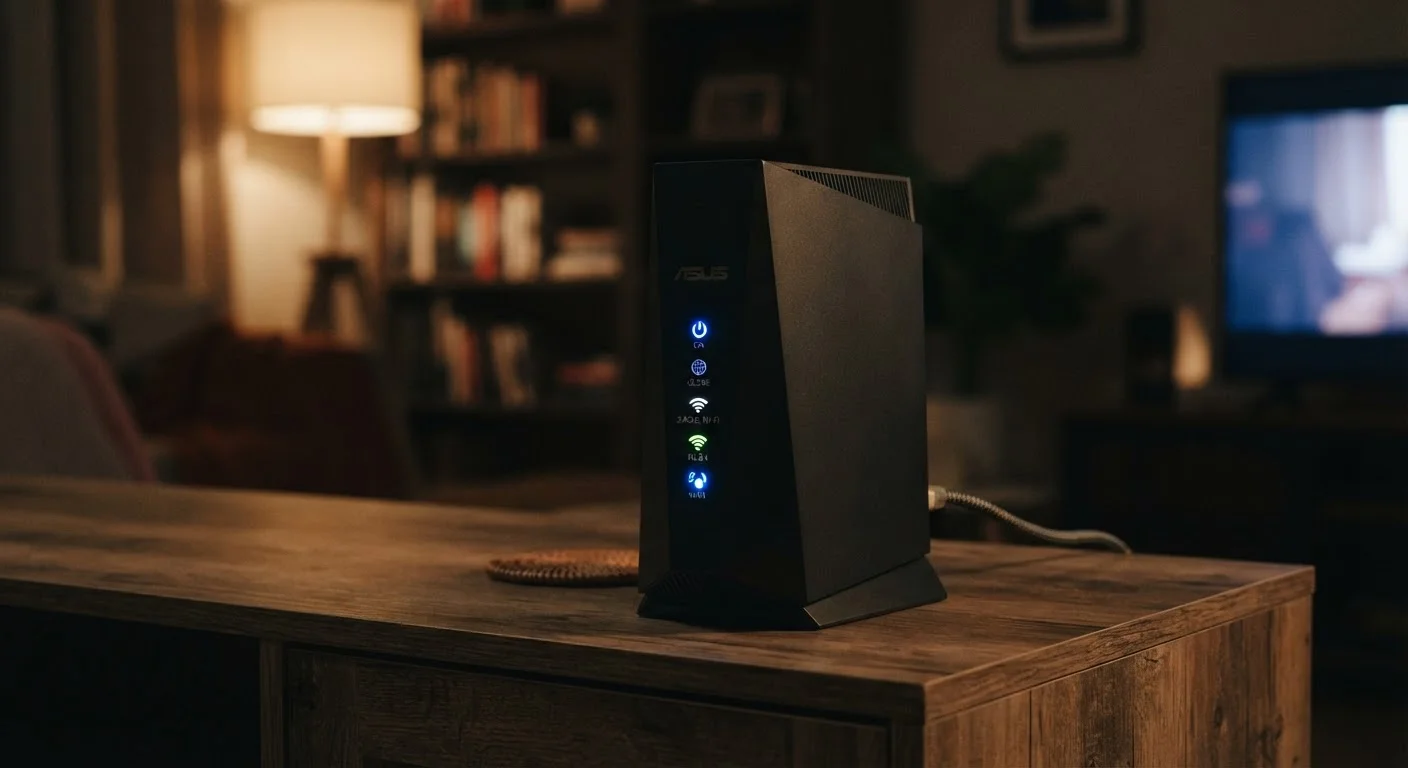
Photo: HorizonMetric.com | One Destination For Everyday Insights editorial
—— In This Article
Why Router Lights Are Worth Understanding
Most people ignore the lights on their router until something stops working. But those small LEDs are actually a built-in diagnostic panel — a quick way to tell whether your internet connection is healthy, your router is updating itself, or something genuinely needs your attention.
Router manufacturers don't follow a single universal standard, so the exact meaning of each light varies by brand and model. That said, most home routers share a common logic. Once you know the general patterns, you can make sense of nearly any router you encounter — and troubleshoot problems without guessing.
If you're also wondering why your speeds are inconsistent even when the lights look fine, it's worth reading about where your router should actually sit in your home.
| Most common 'no internet' cause | Modem or ISP outage, not the router itself |
| Standard reboot wait time | 30 seconds unplugged before restarting |
| Firmware update indicator | Blinking amber/white power light — do not unplug |
| WPS pairing window | Typically 2 minutes before session expires |
| Where to find your model's light guide | Router label (bottom/back) → manufacturer support site |
A Plain-English Guide to Common Router Lights
Here's what the typical indicators mean, along with what to do when something looks off.
WAN (Wide Area Network)
The connection between your home router and the broader internet, delivered through your ISP. The WAN port on a router is where the cable from your modem plugs in.
LAN (Local Area Network)
The private network inside your home. Devices connected by Ethernet cable plug into the router's LAN ports.
Firmware
Built-in software that runs your router. Manufacturers release updates to fix bugs and improve security; many routers download and install these automatically.
WPS (Wi-Fi Protected Setup)
A feature that lets you connect a compatible device to your Wi-Fi by pressing a physical button, skipping the need to enter a password.
Frequency Band
The radio channel a Wi-Fi signal uses. The 2.4 GHz band reaches farther but is slower; the 5 GHz band is faster but has shorter range.
Power Light
Solid green or white: The router is on and running normally. Blinking or amber: The router is booting up or installing a firmware update — an automatic software improvement your router downloads on its own. Wait a few minutes and don't unplug it. No light: Check that the power adapter is fully plugged in at both ends.
Internet or WAN Light
WAN stands for Wide Area Network — the connection between your router and your internet service provider (ISP). Solid green: You have an active internet connection. Amber or red: The router can't reach your ISP. Try unplugging your modem (the box that connects to the coax or phone line coming from outside), waiting 30 seconds, then plugging it back in. No light: The cable between your modem and router may be loose or damaged.
Wi-Fi Light (2.4 GHz / 5 GHz)
Many routers broadcast two separate wireless signals at different frequencies. Solid or slow blink: That wireless band is active. No light: Wi-Fi may be disabled — check your router's settings page. Fast blinking: Normal — it means devices are actively sending and receiving data.
LAN Lights (Ethernet Ports)
LAN stands for Local Area Network — the wired side of your home network. Each port has its own light. Solid or blinking: A device is plugged in and communicating. No light on a port you're using: Reseat the cable or try a different cable. See also: wired vs. wireless trade-offs if you're deciding whether to connect via cable at all.
WPS Light
WPS (Wi-Fi Protected Setup) lets you connect a device by pressing a button rather than entering a password. A blinking WPS light means a pairing session is in progress. It should stop within two minutes. If it keeps blinking, the pairing didn't complete — try again.
When a Light Means 'Call Your ISP'
If your internet light stays red or amber for more than five minutes after rebooting both your modem and router, the problem is likely outside your home. Your ISP may have an outage in your area or an account issue on their end. Most ISPs have an outage map on their website or a status line you can check before waiting on hold.
A router light can't tell you whether your network is as secure as it should be — that requires a look at your settings. Our overview of home network security habits covers practical steps that don't require a technical background.
Always Check Your Router's Manual First
Light colors and patterns are not standardized across the industry — an amber light means 'problem' on some routers and 'updating' on others. The most reliable reference is the documentation that came with your specific model, or the support page on the manufacturer's website. The model number is printed on a label on the bottom or back of the router.

Technology Editorial Team
Technology Editorial Team is the collective byline for our editorial team and contributor network. Articles published under this byline or an editorial pen name are researched, written, and reviewed according to our editorial standards for clarity, consistency, and independence before publication.
View author profile