
Browser Privacy Settings Worth Actually Changing
Most browsers ship with settings that favor convenience over privacy. Here are the specific adjustments that make a real difference for everyday users.
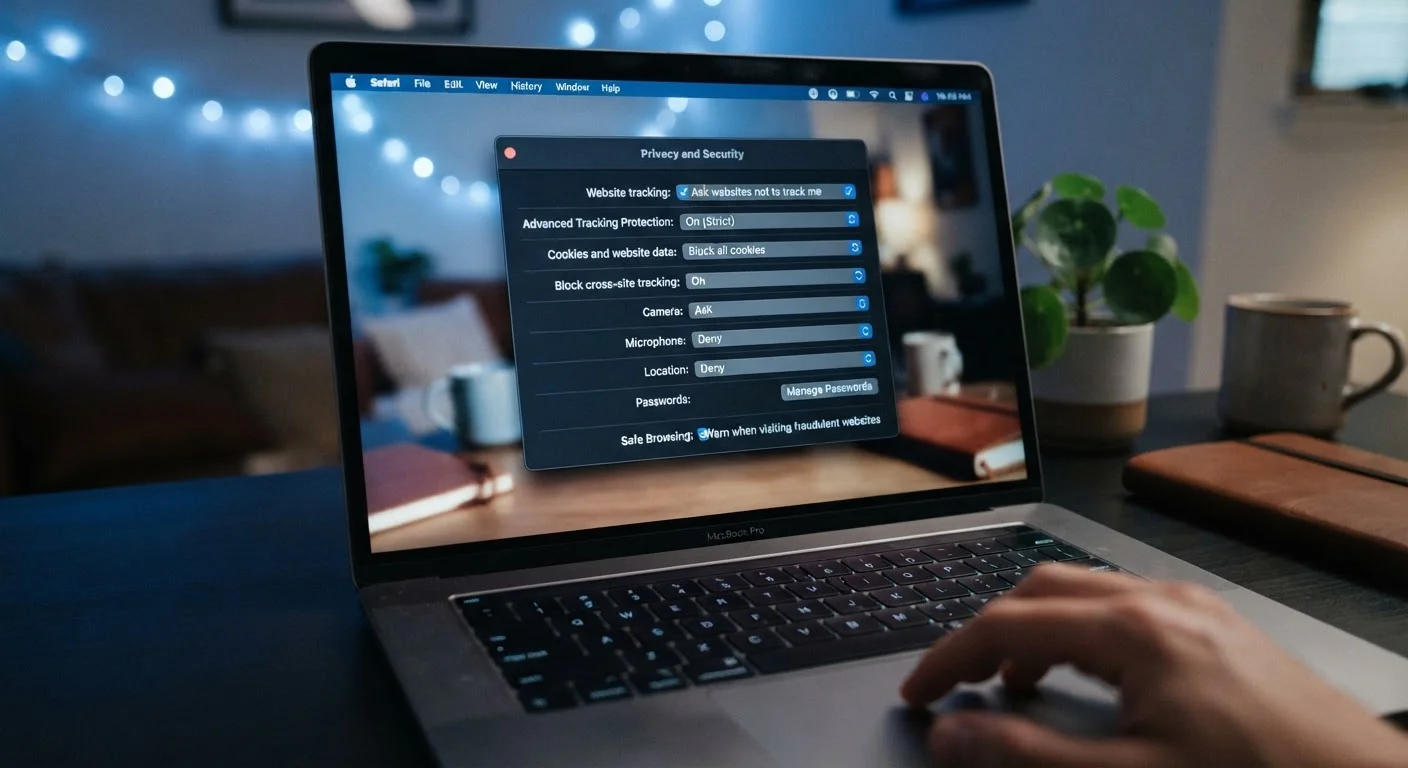
Photo: HorizonMetric.com | One Destination For Everyday Insights editorial
—— In This Article
Key Takeaways
- Most browsers ship with defaults that favor convenience over your privacy — a few targeted changes make a real difference.
- Disabling third-party cookies and limiting location access are two of the highest-impact adjustments available today.
- Private or incognito mode does not make you anonymous — it mainly stops your device from saving your history locally.
- Turning off "suggest sites" and autofill for sensitive fields reduces the data your browser transmits to external servers.
- You don't need to be a tech expert to tighten your browser privacy — most settings take under two minutes to change.
Why Browser Defaults Work Against You
When you install a browser — or use the one that came on your device — it's configured for convenience, not privacy. That's not an accident. Browsers are often funded partly through data-sharing arrangements and default search agreements. The settings that come pre-enabled tend to collect more information about your browsing habits than most people realize.
Understanding what your browser is quietly doing in the background is the first step. Every site you visit, every search you type, and every form you fill in creates data. Some of that data stays on your device; a surprising amount gets sent elsewhere. As our piece on your digital footprint explains, that information builds into a detailed picture of who you are and what you do online.
The good news: you don't need to switch browsers or install anything. The settings already built into major browsers can significantly limit data exposure if you know which ones to change.
The Settings That Actually Matter
Block third-party cookies in your browser settings.
Third-party cookies are placed by advertisers and data companies — not the site you're actually visiting. They track your movement across many different websites to build a profile of your interests and behavior. Blocking them cuts off one of the most widespread tracking mechanisms on the web without breaking most websites.
Set location access to 'Ask before allowing' rather than granting it by default.
Browsers can share your physical location with websites that request it. Many sites ask for location data even when it's not strictly needed for the service you're using. Requiring a prompt each time gives you control over who gets that information.
Turn off 'suggest sites as you type' or address-bar prediction features.
When your browser auto-suggests URLs or searches as you type, it's sending your keystrokes to an external server — often a search engine — in real time. This means half-formed searches and website addresses you never finished typing are transmitted before you've even pressed Enter.
Disable autofill for passwords and payment information if you're not using a dedicated password manager.
Browser-based autofill stores sensitive data locally and syncs it to your browser account in the cloud. If your browser account is compromised, or if a malicious website manages to trick the autofill into submitting credentials, your information can be exposed. A standalone password manager gives you more control and security.
Enable 'Do Not Track' and, where available, 'Global Privacy Control.'
Do Not Track is a signal your browser sends asking websites not to track you. Compliance is voluntary, so it's not foolproof. Global Privacy Control (GPC) is a newer standard that carries legal weight in some U.S. states, including California, and is honored by a growing number of sites.
A Note on Private Browsing Mode
Many people assume that opening an incognito or private window handles their privacy for them. It doesn't — not in the way most people think. Private mode stops your browser from saving your browsing history, cookies, and form data on your device. Your internet provider, your employer's network, and the websites you visit can still see your activity.
Private browsing has genuine uses, but it's not a substitute for adjusting your core settings. Think of it as one tool in a larger kit — not the whole kit.
Private Mode Has Real Limits
Incognito and private browsing windows are useful for keeping activity off your device's local history — helpful when using a shared computer, for example. But they don't hide your activity from your internet service provider, your employer's network, or the websites you visit. For day-to-day privacy, adjusting your core browser settings matters far more than relying on private mode.
For a broader picture of how your activity is tracked across apps and websites, see what happens when apps ask for permissions. The same logic that applies to browser settings applies to the apps on your phone.
Start Here: Quick Changes With Big Payoff
These adjustments take only a few minutes and don't require any technical background. If you want to go further, consider reviewing your browser's full privacy dashboard — most major browsers now offer a dedicated privacy or security section in their settings menu that consolidates many of these controls in one place.
Privacy online is rarely about one big fix. It's about layering small, sensible habits. Browser settings are one layer. Reviewing your social media privacy settings is another. Together, they reduce the surface area available to data brokers and advertisers significantly.

Technology Editorial Team
Technology Editorial Team is the collective byline for our editorial team and contributor network. Articles published under this byline or an editorial pen name are researched, written, and reviewed according to our editorial standards for clarity, consistency, and independence before publication.
View author profile