
Taking Control of Your Social Media Privacy: A Practical Walkthrough
Social platforms default to sharing more than most people realize. A step-by-step guide to reviewing and tightening your privacy settings across accounts.
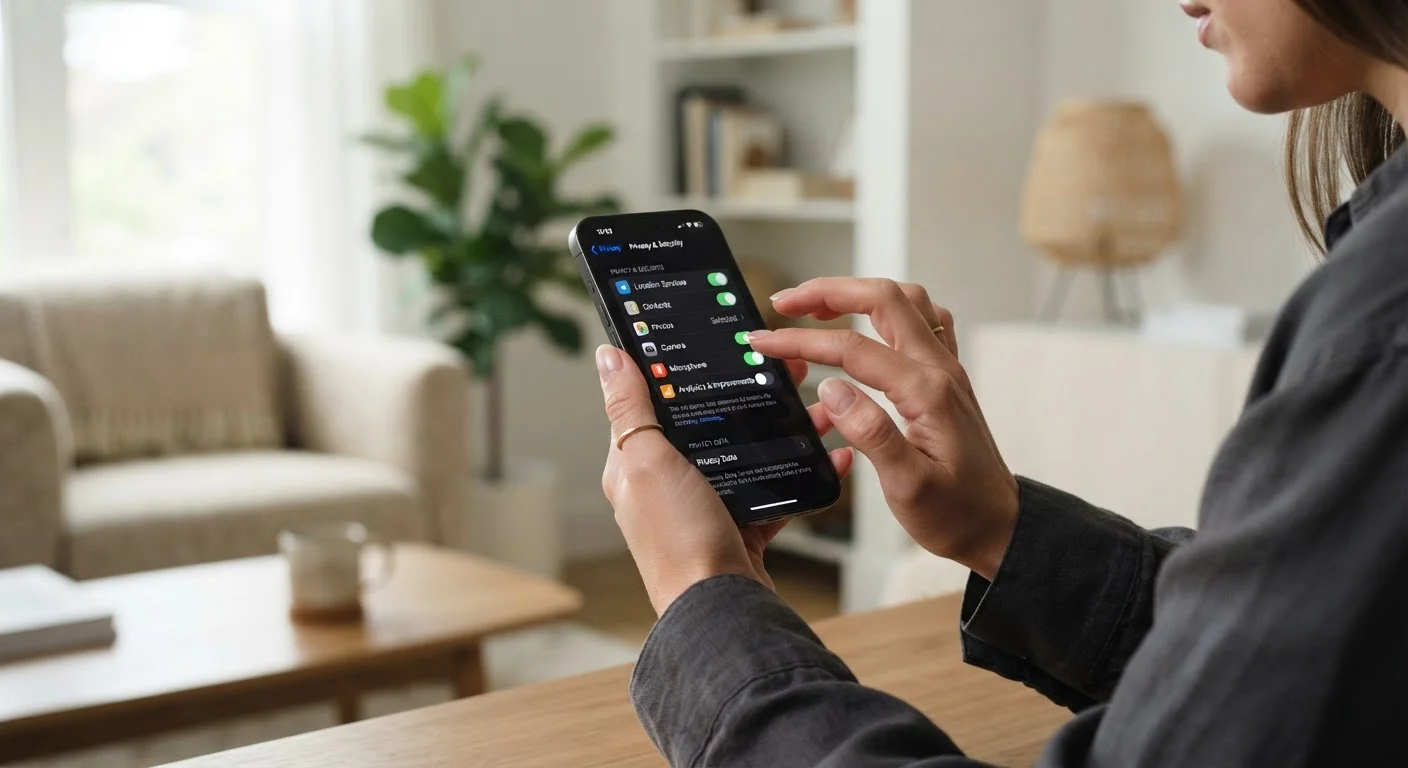
Photo: HorizonMetric.com | One Destination For Everyday Insights editorial
—— In This Article
Key Takeaways
- Social platforms default to the most permissive privacy settings, not the most protective ones.
- Reviewing your audience controls, data-sharing toggles, and connected apps takes under an hour.
- You can limit who sees your posts and whether platforms use your activity for ad targeting.
- Old connected apps you no longer use can still access your account data — revoke them.
- Privacy settings change as platforms update — a periodic review every few months is worthwhile.
Why Default Settings Work Against You
When you sign up for a social media platform, the settings are almost never configured with your privacy in mind. Platforms typically default to maximum visibility and data sharing because broader reach and richer data help their advertising business. That means your posts may be visible to anyone on the internet, your location data may be collected, and third-party apps you authorized years ago may still have access to your profile.
This isn't a reason to panic — it's a reason to spend 20 to 45 minutes making deliberate choices. The goal isn't to lock everything down; it's to understand what you're sharing and with whom, then decide what feels right for you. Think of it the same way you'd think about any other aspect of your digital habits — for a broader look at how data flows from apps to platforms, see what happens when apps ask for permissions.
What you will need
Core Settings to Review on Every Platform
Every major social platform — Facebook, Instagram, X (formerly Twitter), TikTok, LinkedIn, and others — has a privacy or settings menu. The labels differ, but the underlying controls are similar. Focus on these four categories wherever they exist:
- Audience controls: Who can see your posts, your profile, your friends or followers list, and your contact information. Most platforms let you choose between Public, Friends/Followers, or Only Me.
- Data and ad settings: Whether the platform can use your activity — likes, searches, browsing behavior — to serve targeted ads. You can often limit this without losing access to the platform.
- Connected apps and services: Third-party apps you've logged into using your social account. These may retain access to your profile data long after you stopped using them.
- Location and device data: Whether the platform tracks your physical location, even when you're not actively using the app.
Do One Platform at a Time
Trying to audit every account in one sitting can feel overwhelming and lead to rushed decisions. Pick one platform, complete all seven steps, then come back for the next. Even reviewing just one platform today is a meaningful improvement over your previous defaults.
Once you've worked through the steps below, the same mindset applies to your broader browser habits — browser privacy settings worth changing walks through similar adjustments for your web browsing.
Step-by-Step: Tightening Your Settings
Find the privacy settings menu
On most platforms, look for your profile icon or avatar, then navigate to Settings or Settings & Privacy. On mobile apps, this is often tucked behind a hamburger menu (three horizontal lines) or a gear icon. Look for a section specifically labeled Privacy, Privacy & Safety, or Data.
Set your default post audience
Look for an option called Who can see your posts, Default audience, or similar. Change this to Friends or Followers only if you don't want your content visible to anyone on the internet. On platforms like Instagram, switching from a public to a private account achieves this in one step.
Also check whether your past posts can be restricted in bulk — Facebook, for example, offers a "Limit Past Posts" option that updates all previously public posts at once.
Lock down your profile information
Visit your profile and review each field: phone number, email address, birthday, hometown, employer, and relationship status. For each piece of information, ask yourself: does anyone who isn't already a close contact need to see this? Set sensitive fields like phone number and email to Only Me or remove them from your public profile entirely.
Review and revoke connected apps
Navigate to the section for Apps and Websites, Connected Apps, or Third-Party Access. You'll likely see a list of apps and services that you authorized — sometimes years ago — to access your account. For each one: if you don't recognize it, or no longer use it, revoke its access. Removing access doesn't delete your account with that app, but it stops it from pulling data from your social profile.
Adjust ad and data personalization settings
Look for settings labeled Ad Preferences, Data About You, or Off-Platform Activity. Most platforms let you limit whether they track your behavior on other websites and apps to build an advertising profile. You can often turn off interest-based targeting or clear your ad activity history. This won't eliminate ads, but it reduces how much behavioral data is used to target you.
Turn off location sharing
Check both the platform's in-app location settings and your phone's system settings. On your phone, go to Settings > Apps > [Platform Name] > Location and set it to Never or While Using rather than Always. Within the app itself, also disable any setting that tags your location to posts automatically or shares your precise location with the platform in the background.
Set a reminder to repeat this process
Privacy settings on social platforms change. Platforms roll out updates that may reset or add new sharing options. Set a recurring reminder — every three to six months — to revisit these settings. It takes much less time on subsequent reviews once you know where to look.
After working through your active accounts, don't overlook older platforms you may have stopped using. Dormant accounts still hold personal data and can be a vulnerability — old accounts you forgot about explains why closing them matters.
Deactivating Isn't the Same as Deleting
If you decide to step away from a platform, note that deactivating your account typically just hides it temporarily — your data remains stored. Deleting an account usually requires a separate, explicit step and may take weeks to fully process. Check each platform's help documentation for its specific deletion process.
For a fuller picture of staying safe online — passwords, scam awareness, and more — this grounded guide to everyday internet security covers the habits that make the biggest difference.

Technology Editorial Team
Technology Editorial Team is the collective byline for our editorial team and contributor network. Articles published under this byline or an editorial pen name are researched, written, and reviewed according to our editorial standards for clarity, consistency, and independence before publication.
View author profile