
Sorting Through Spam: How to Reclaim Your Inbox Without Losing Important Mail
A cluttered inbox isn't inevitable. Learn the practical steps to reduce spam, unsubscribe safely, and keep your email organized and under control.
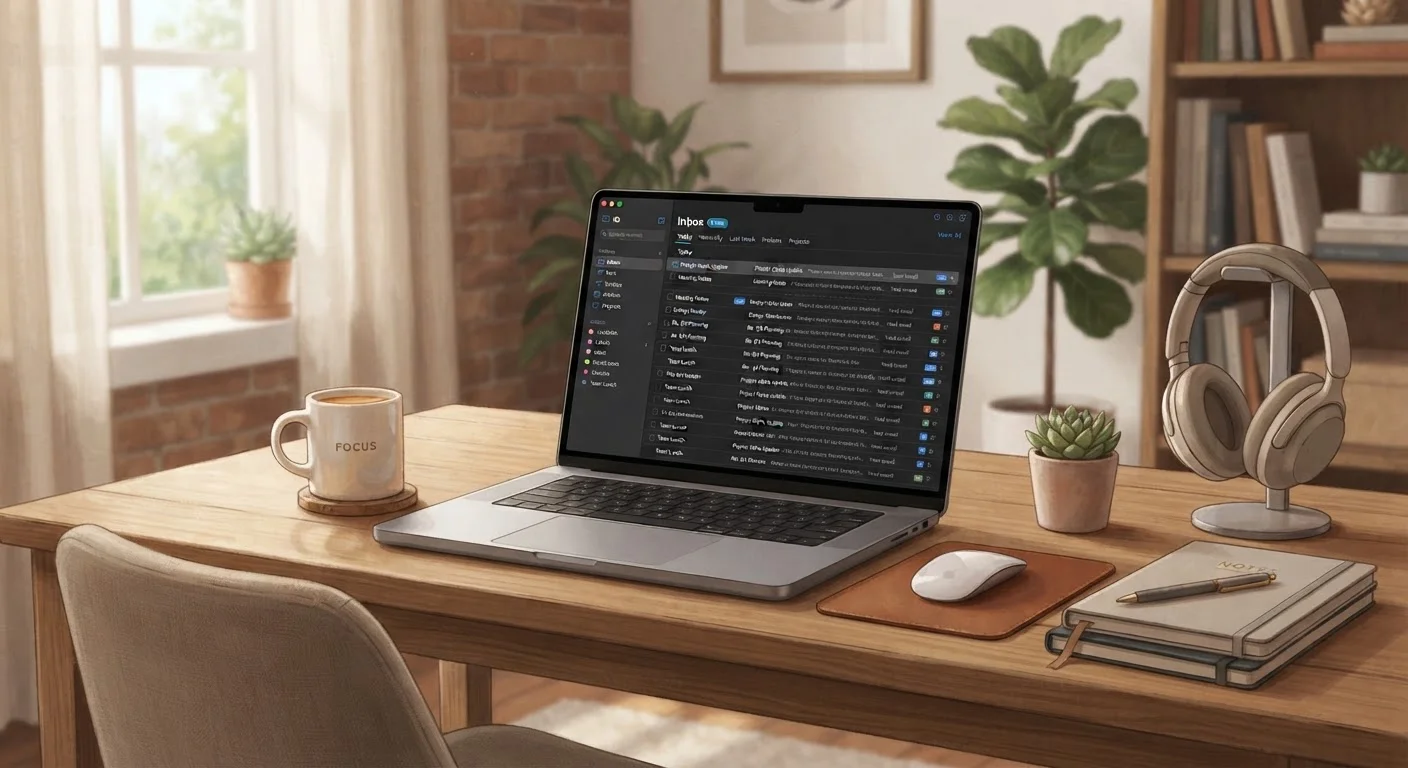
Photo: HorizonMetric.com | One Destination For Everyday Insights editorial
—— In This Article
Key Takeaways
- Spam filters catch a lot, but manual habits close the gaps they miss.
- Unsubscribing from legitimate mailing lists is safe and effective at reducing volume.
- Never click unsubscribe links in emails that look suspicious or unexpected.
- Folders and filters let your inbox sort itself automatically over time.
- Using a secondary email address for sign-ups protects your primary inbox.
Why Your Inbox Gets Out of Hand
A full inbox is rarely the result of one big mistake. It usually builds gradually: a retail account here, a newsletter sign-up there, an old forum registration you forgot about. Over time, dozens of senders accumulate, and each one that gets through makes the pile harder to manage. The good news is that spam isn't random — most of it traces back to identifiable sources, and that means it can be systematically reduced.
Spam filters handle a significant share of the problem automatically. But they aren't foolproof, and they can't address the legitimate promotional mail you actually opted into at some point. That's where manual habits come in. Think of inbox management the same way you'd think about physical clutter — the habits that keep clutter from coming back apply here too: a little consistent attention prevents a much bigger problem later.
It's also worth knowing the difference between true spam (unsolicited messages from unknown senders), phishing attempts (messages designed to steal your information), and bulk marketing mail from companies you've done business with. Each requires a different response. Understanding how phishing and related scams work will help you avoid making a costly mistake while cleaning up your inbox.
Don't Unsubscribe From Suspicious Emails
If an email looks off — unexpected sender, vague subject line, pressure to act — do not click any link inside it, including "unsubscribe." Clicking that link can confirm your address is active, leading to more spam or, worse, a phishing attempt. Mark it as spam and delete it instead. Learn more about warning signs in our guide on spotting suspicious emails.
What You'll Need to Get Started
You don't need special software or technical expertise to take back your inbox. The tools built into your email account are enough to handle the majority of the problem. Here's what you'll be working with:
Your email provider's spam or junk filter
Automatically catches and quarantines most unwanted messages before they reach your inbox.
Email filter or rule settings
Automatically sorts incoming messages into folders based on sender, subject, or keywords.
A secondary email account
Acts as a buffer for sign-ups and registrations, keeping promotional mail away from your primary inbox.
Email unsubscribe tools (built into some providers)
Surfaces mailing list subscriptions in one place so you can cancel them efficiently.
What you will need
Use a Dedicated Sign-Up Address
Create a free secondary email account specifically for store registrations, app sign-ups, and online forms. Forward anything important to your main account and let the rest accumulate separately. This single habit can dramatically reduce unwanted mail in your primary inbox without requiring you to unsubscribe from anything.
Step-by-Step: Cleaning and Organizing Your Inbox
Follow these steps in order. The first time through, budget about an hour. After that, a ten-minute weekly check-in is usually enough to stay on top of things.
Audit your spam folder first
Before adjusting any settings, open your spam or junk folder and scroll through it. Look for any legitimate email that was incorrectly filtered — a bank notification, a receipt, or a message from someone you know. Select those messages and mark them as "not spam" so your filter learns from the correction. Once you've rescued anything important, delete the rest in bulk.
Unsubscribe from legitimate mailing lists
Sort your inbox by sender or search for words like "unsubscribe," "newsletter," or "promotion." For emails from stores, news sites, or apps you actually signed up for, scroll to the bottom and click the unsubscribe link. Most reputable senders are required by law (the CAN-SPAM Act in the US) to honor these requests within ten business days. Work through a batch of ten to fifteen per session rather than trying to do everything at once.
Set up filters to auto-sort what remains
Most email providers — including Gmail, Outlook, and Apple Mail — let you create rules that automatically move, label, or archive incoming messages. For example, you can create a filter that sends all messages from a specific domain to a "Promotions" folder, or that marks any email containing the word "invoice" as important. Spend fifteen minutes setting up three to five rules for your most common senders. Your inbox will begin sorting itself automatically.
Report spam rather than just deleting it
When a spam message slips through to your inbox, don't just delete it — mark it as spam or junk. This sends a signal to your email provider's filter, helping it catch similar messages in the future. Most providers also share anonymized spam reports across their network, so your one click contributes to better filtering for everyone. This takes the same amount of time as deleting, but the benefit compounds.
Guard your primary address going forward
Going forward, be selective about where you share your main email address. For one-time purchases, app trials, or contests, use a secondary address or a temporary alias if your provider supports them. This is one of the most effective long-term strategies for keeping your primary inbox clean — new spam can't arrive if your address was never shared in the first place.
Check Spam Before You Empty It
Spam filters are not perfect. Legitimate emails — especially password resets, bank alerts, or messages from new contacts — occasionally land in your spam folder. Make it a habit to skim your spam folder once a week before deleting everything. Marking misidentified emails as "not spam" also trains your filter to do better over time.
Keeping It Under Control Over Time
Inbox hygiene isn't a one-time fix — it's an ongoing habit. Set a recurring reminder to spend five minutes each week skimming your spam folder and unsubscribing from any new mailing lists that slipped in. If your volume of unwanted mail starts creeping back up, it usually means a new sign-up or data sharing event introduced your address to new senders. Trace it back, unsubscribe, and adjust your filtering rules accordingly.
If you're also dealing with a backlog of physical mail and paperwork, the strategies in our guide on managing paper clutter follow a similar logic — identify sources, create a system, and prevent new accumulation. Digital and physical organization often reinforce each other when approached consistently.

Technology Editorial Team
Technology Editorial Team is the collective byline for our editorial team and contributor network. Articles published under this byline or an editorial pen name are researched, written, and reviewed according to our editorial standards for clarity, consistency, and independence before publication.
View author profile