
Setting Up a Smart Home from Scratch
New to smart home tech? This guide walks you through planning, connecting, and organizing devices without prior experience.
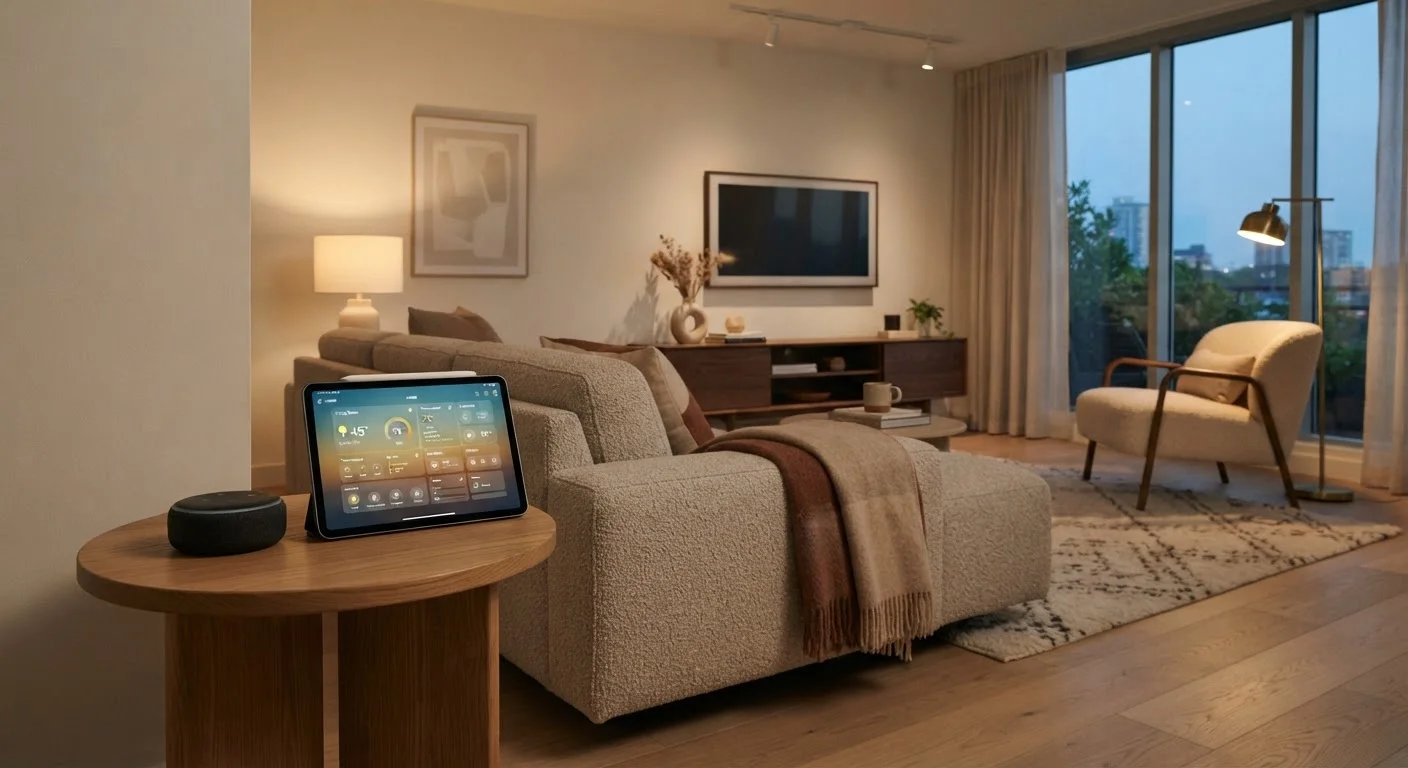
Photo: HorizonMetric.com | One Destination For Everyday Insights editorial
—— In This Article
Key Takeaways
- A reliable Wi-Fi network is the most important foundation for any smart home setup.
- Starting with just one or two devices keeps the process manageable and avoids frustration.
- Choosing a voice assistant or app ecosystem early saves compatibility headaches later.
- Not all smart devices work with each other — checking compatibility before buying matters.
- Organizing devices into named rooms in your app makes everyday control much simpler.
What a Smart Home Actually Is
A smart home is simply a living space where everyday devices — lights, thermostats, locks, cameras, plugs — can be controlled remotely or automatically, usually through a smartphone app or voice commands. That's it. There's no requirement for a whole-house renovation or a degree in engineering.
The appeal is practical: you can turn off a light you forgot about from across town, set your thermostat to warm up before you get home, or get an alert if a door opens unexpectedly. Before diving in, it's worth knowing what smart homes can't do — our guide on common smart home myths separates realistic expectations from marketing promises.
Smart device
A household gadget that connects to the internet or your home network so it can be controlled remotely via an app or voice command.
Hub
A central device or app that lets multiple smart devices communicate with each other and be controlled from one place.
Ecosystem
A family of apps, devices, and services from one platform (like Amazon Alexa or Apple HomeKit) designed to work smoothly together.
Routine (automation)
A pre-set sequence of actions your devices carry out automatically — for example, turning lights on at sunset every day.
Matter
A newer industry standard designed to help smart devices from different brands work together more reliably, without needing to be on the same ecosystem.
2.4 GHz band
A Wi-Fi frequency that travels farther and through more obstacles than 5 GHz, making it the connection type most smart home devices use.
Start With Your Wi-Fi
Every smart home runs on your home network. Before you buy a single device, take an honest look at your Wi-Fi. A router that struggles to reach the back bedroom or regularly drops connections will make smart devices frustrating to use — they'll appear offline, respond slowly, or fail entirely.
If coverage is spotty, a mesh Wi-Fi system (a set of coordinated access points spread around your home) can help distribute signal more evenly. Most smart devices use the 2.4 GHz band, which travels farther through walls than 5 GHz, so check that your router broadcasts both. For a deeper look at home network setup, our home streaming setup guide covers router basics that apply here too.
Test Coverage Before You Commit
Walk around your home with your smartphone and check whether your Wi-Fi signal remains strong in every room where you plan to place a smart device. Most phones show signal strength in the Wi-Fi settings menu. If it's weak in key spots, sorting that out first will save you from unexplained device failures later.
Choose a Hub or Voice Assistant
A hub is a central controller that lets different devices communicate with each other and with you. It might be a dedicated device, or it might simply be a voice assistant — a smart speaker that listens for commands and coordinates your devices.
The main voice assistant ecosystems in the U.S. are Amazon Alexa, Google Assistant, and Apple HomeKit. Each has its own app and tends to work most smoothly with devices designed for that platform. Picking one ecosystem early — even loosely — helps avoid situations where devices can't talk to each other. Our cross-brand compatibility guide explains why this matters and what newer standards like Matter are doing to improve the situation.
Which Devices to Add First
Starting small is genuinely good advice, not just a cliché. Adding too many devices at once makes troubleshooting harder and the learning curve steeper. Smart light bulbs or smart plugs are often recommended as entry points — they're straightforward to install, don't require any wiring changes, and give you an immediate, tangible result.
From there, a smart thermostat is a popular second step because the setup is manageable (though some older heating systems aren't compatible — check before buying) and the convenience payoff is clear. Smart door locks and cameras are useful but involve more considerations around security and, for locks, installation complexity.
Check Compatibility Before Buying
Not every smart device works with every ecosystem or voice assistant. Before purchasing, look at the device's packaging or product listing for phrases like 'Works with Alexa' or 'Works with Google Home.' Buying an incompatible device is one of the most common — and easily avoidable — beginner mistakes.
Connecting and Organizing Everything
Most smart devices walk you through setup inside their own app. The typical process: plug in the device, open the app, create an account, and follow the pairing prompts. Once paired, you can then link that device to your chosen voice assistant app so everything appears in one place.
Organizing devices into rooms within your app — living room lights, bedroom plug, front door lock — makes everyday control much more intuitive. You can then create routines, automated sequences triggered by time or events, like having the lights dim automatically at 10 p.m.
As your setup grows, treating your home's physical layout as an organizing principle (room by room) helps keep things manageable. If you find the organizational side of home setup useful, our room-by-room organization guide applies similar thinking to your physical space.
Troubleshooting and Keeping Things Running
Smart home devices don't always behave perfectly. The most common issues — a device showing as offline, a voice command not working, an automation not firing — usually have straightforward causes: the device lost its Wi-Fi connection, an app needs updating, or a routine was set up with a small error.
Our troubleshooting checklist covers the systematic steps worth running through before assuming a device is defective. Beyond fixes, general habits for keeping devices reliable over time — like applying firmware updates and keeping your app accounts in good standing — apply to smart home hardware too. A little routine maintenance goes a long way toward a setup that just works.
Firmware Updates Matter for Security
Smart home devices receive firmware updates — small software improvements pushed out by the manufacturer — that often include security patches. Most apps let you enable automatic updates, which is worth turning on. An outdated device can have known vulnerabilities that make it easier for unauthorized parties to access your home network.
Frequently Asked Questions

Technology Editorial Team
Technology Editorial Team is the collective byline for our editorial team and contributor network. Articles published under this byline or an editorial pen name are researched, written, and reviewed according to our editorial standards for clarity, consistency, and independence before publication.
View author profile